
Configure Crawl Scope in LLMIC
Set the input mode and boundaries before running a crawl.
A useful crawl starts with a boundary. Before you press Play, decide whether you are investigating a few changed URLs, checking a sitemap inventory, or following links through a website. Those are different jobs. A crawl that answers one of them can still be unsuitable for another.
To configure crawl scope in LLMIC, choose the input mode, check the starting URLs, and set limits that fit the investigation. Record those choices with the results. The goal is not the largest possible crawl; it is a set of observations you can explain and repeat.
Choose the Input That Matches the Question
The mode selector provides Auto-Crawl, URL List and Sitemap. Start with the question you need to answer, then choose the mode. Do not interpret a small, deliberately selected list as a census of the website.
| Your question | Starting point | What the result can establish |
|---|---|---|
| Did these edited pages retain their expected titles and links? | URL List containing the edited URLs | What the selected pages returned during this check |
| What does the submitted sitemap inventory contain? | Sitemap mode with the relevant sitemap | Findings about URLs supplied through that inventory |
| Which pages can this crawl discover through links? | Auto-Crawl from a representative public starting URL | The reachable pages discovered within the configured boundaries |
A sitemap is one source of URLs, not a complete account of every URL that exists. Likewise, a linked crawl can miss an unlinked page. If your job is to compare the two inventories, keep the runs separate and name them clearly. Combining their totals without preserving provenance makes the coverage harder to interpret.
Prepare the Starting URLs
For Auto-Crawl, enter the public URL you actually intend to investigate. Check its scheme and hostname. A redirected starting URL may lead to a different location than the one you typed. Open it in a browser first if ownership or destination is unclear.
For URL List, open the control showing the number of URLs. Enter one URL per line, or use Import for a prepared list, then choose Done. Review the list before starting. A spreadsheet copied with headings, notes or partial paths is not the same as a clean list of absolute URLs.
Use URLs you are authorized to audit. Avoid account pages, checkout actions and private query-string tokens in a routine public-site check. If an authenticated investigation is required, agree its scope separately and follow your organization’s handling rules. This guide assumes a public website and does not require credentials.
Set Page, Depth and Redirect Limits Deliberately
Open Settings and locate the crawling controls. Max Pages limits the size of the investigation; Max Depth constrains link traversal; Max Redirects limits how far a redirect sequence is followed. Check the values shown in your installed version rather than assuming a screenshot from another release matches it.
A page limit is a ceiling, not a target. Reaching it means you must examine whether more URLs remained to be processed. Finding fewer pages does not prove the site is smaller than the limit. Discovery, access, depth and the chosen inputs can all constrain the result.
Depth is also not the number of folders in a URL. A page with several path segments can be linked directly from your starting page. Conversely, a short URL can require several link-following steps to reach. Choose depth according to the navigation paths you need to examine, then verify representative deep pages in the results.
Keep Max Redirects finite. If a URL repeatedly redirects, increasing this setting without inspecting the sequence may only prolong a faulty request. Record a redirect problem as evidence to investigate rather than treating every failure to reach a final page as a reason to raise the limit.
Keep Access and Rendering Choices With the Scope Record
Check the Respect robots.txt setting before the run. A robots restriction can explain why a URL was not fetched; it does not establish what that page’s content would have contained. Do not disable restrictions just to make a report appear more complete.
Rendering affects the evidence available from pages whose content depends on JavaScript. Keep rendering choices consistent when comparing two runs. If a page appears empty or its navigation is missing, inspect that specific page before enabling more expensive processing across the entire website.
Your LLMIC configuration does not change Googlebot’s crawl settings. It also does not establish whether Google has indexed a URL. Treat the local crawl as one observation source and use Search Console when the question concerns Google’s recorded indexing state.
Worked Example: Check a Small Documentation Release
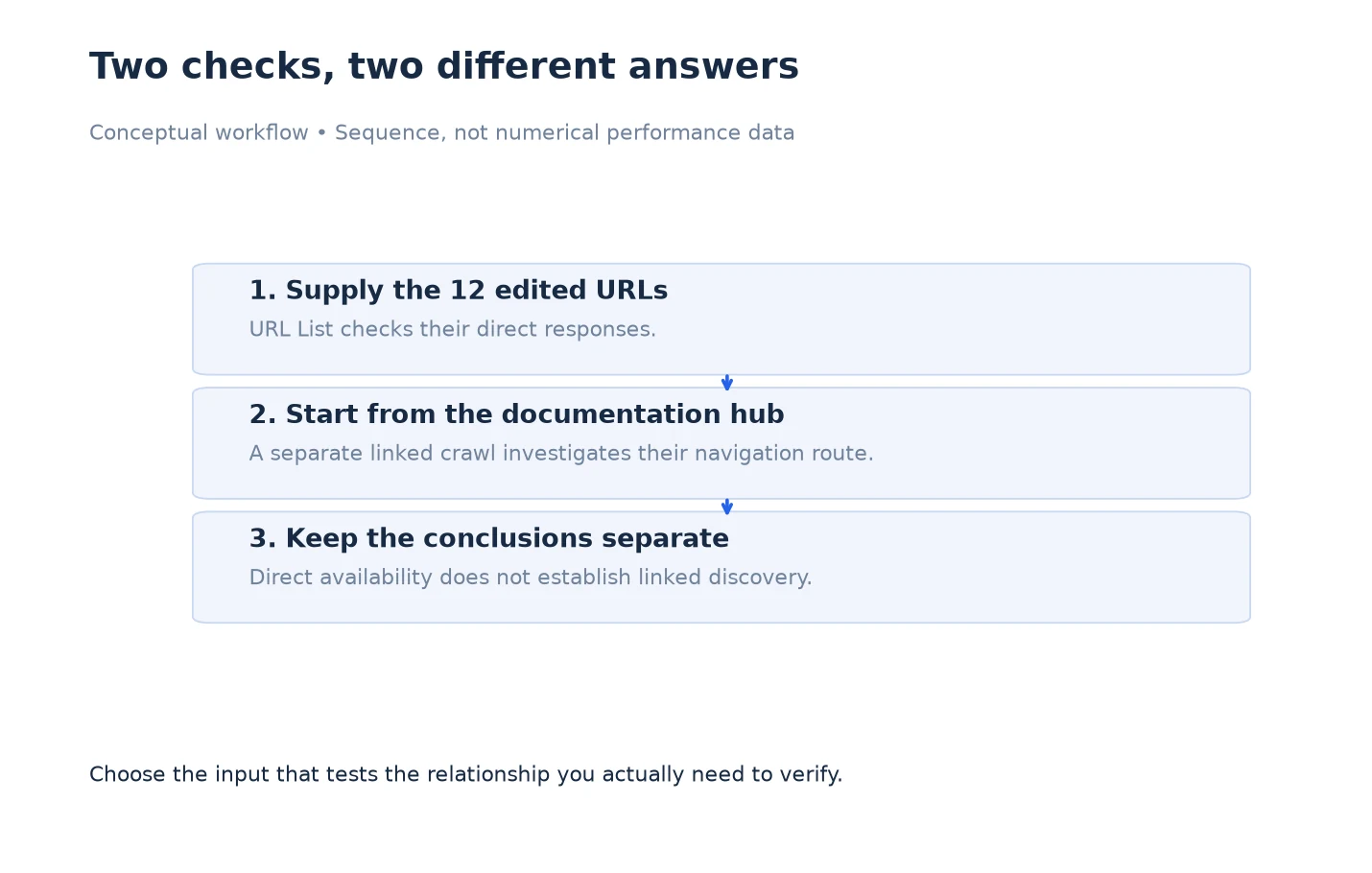
This example is illustrative, not a customer result. Suppose a release changes twelve documentation pages. Your acceptance question is narrow: do all twelve return the expected page content, and do their key links lead to the intended destinations?
Prepare a URL List with those twelve exact public URLs. Name the evidence set with the release and date. Record the input mode, page limit, rendering choice and any access restrictions. Run the check and reconcile every input against the result. If only eleven have usable observations, investigate the remaining URL; do not report twelve successful checks because twelve URLs were supplied.
Then run a separate Auto-Crawl from the documentation hub if you also need to know whether readers can reach the updated pages through navigation. A page can pass the direct-URL check while remaining absent from a hub’s links. Those two findings call for different fixes, which is why the two runs should not be blended into one reassuring total.
Save a Scope Note Before Sharing Results
Write down the question, starting URL or input-file name, mode, limits, run time and any deliberate exclusions. Add the number of supplied URLs and the number with usable results where those counts are available. If you stopped the run, say so. Keep the note beside the saved crawl or exported table.
Before making a site-wide claim, ask whether the scope supports it. “No broken links were found on these twelve inspected pages” is more defensible than “the website has no broken links.” For the next step, use Review Crawl Scope Results in LLMIC to reconcile the observed coverage with the original question.
Questions About Setting Crawl Boundaries
Which mode should I use for a release check?
Use URL List when you already know the exact changed URLs. It gives you an explicit input set to reconcile. Add a separate linked crawl if the release also changes navigation or discoverability.
Does a high Max Pages value guarantee complete coverage?
No. The crawler still needs to discover or receive each URL and obtain usable evidence. Access restrictions, depth, rendering, redirects and an interrupted run can leave gaps even when the page ceiling is not reached.
Should I always start Auto-Crawl from the homepage?
Choose a starting page that fits the investigation. A homepage is useful for broad navigation coverage; a section hub can focus an investigation. Record the choice because changing the starting point can change what is discovered.
Can I compare a sitemap crawl with a URL List check?
Yes, as different evidence sets. Preserve how each URL entered the investigation and compare URL identities rather than only total counts. A difference can reflect the input selection instead of a site defect.
Should I raise Max Depth when a page is missing?
First confirm the page exists and inspect its link path from the starting URL. If the route genuinely extends beyond the chosen depth, a targeted rerun may help. Raising depth cannot repair an absent link or an access failure.
Does changing LLMIC scope affect Google’s crawling?
No. These settings govern your LLMIC investigation. Google’s crawling and indexing are separate systems, and their outcomes need separate evidence.
What should I send a colleague who needs to repeat the run?
Send the non-sensitive input list or starting URL, the mode, relevant settings, run date and the question being tested. Include exclusions and any incomplete outcomes. Do not include passwords or session tokens in a scope note.
Sources, Statistics and Measurement Notes
Product controls were checked against the LLMIC interface and crawling-settings implementation on 5 October 2026. Control placement can differ by release. The twelve-page scenario is a constructed teaching example; it is not a benchmark, customer result or coverage claim.
External references: Google’s introduction to robots.txt explains crawl restrictions; Google’s sitemap overview explains the role and limits of sitemap discovery. Accessed 5 October 2026. Neither source certifies the completeness of an LLMIC crawl.