
Configure Crawl Scheduling in LLMIC
Configure a recurring job, then verify its first actual observation.
A recurring audit is useful only when somebody can explain what should run, when it actually ran, and which result needs review. A schedule is not a promise that a laptop will collect complete evidence at an exact minute. Configure crawl scheduling in LLMIC around a defined website, an appropriate interval and an owner who checks the results. Start with one observed run before depending on automation. Keep your first schedule narrow enough to inspect, and keep a record of the settings that make its future results comparable.
Define the Job Before Choosing the Interval
Write down the question the recurring audit should answer. A release team might need to know whether a recently repaired link remains usable. A site owner might want a recurring review of a changing section. Those jobs have different inputs and review needs. Avoid treating a general score as a substitute for the exact finding you care about. Record the website, the relevant URLs, the required checks and the person who will act when a meaningful change appears.
Choose a frequency that fits the site’s change rate and the time available to review results. Running more often does not make an incomplete comparison trustworthy. If nobody can review a daily result, a shorter interval may create a growing pile of observations without a clear response. Also consider the website’s capacity and the work each run requires. Scheduling should repeat a useful investigation, rather than turn a production website into an unbounded load test.
Find the Scheduling Controls
In builds that expose these controls, open More, Settings and the Automation area. Scheduled Audits includes a type selector, an interval, a URL field and an Add action. Choose Full Audit for the website-crawl workflow. Share-of-Model is a different job with different inputs and provider evidence. Confirm the available controls in your installed release and check the current plan limits before subscribing for a specific workflow. The reviewed implementation gates scheduled work on authentication and Pro access.
Enter the intended public website URL, including its scheme. Check the host and path carefully before adding the schedule. The presence of a row in the list does not prove that the address is valid, reachable or appropriate for the crawl. Run a deliberate manual check first when access, redirects or scope are uncertain. A mistyped destination repeated automatically is still a mistyped destination; increasing frequency will not correct it.
Record More Than the Visible Schedule Row
The reviewed schedule configuration records its URL, interval, type, enabled state and run-related status. Do not assume that this row freezes every crawl option into an immutable preset. Record the crawl settings separately, especially when another operator may change the app’s working configuration between runs. If a saved result covers a different boundary, treat it as a different observation rather than silently comparing its counts with the previous one.
| Record | Why it matters | Acceptance check |
|---|---|---|
| Website and intended scope | Identifies the investigation | Actual URLs match the agreed boundary |
| Job type | Distinguishes crawl and provider work | Result belongs to the chosen type |
| Interval and timezone note | Explains the intended cadence | Actual start and finish are recorded |
| Crawl options | Defines comparable work | Required checks remain consistent |
| Review owner | Turns observations into action | Someone inspects the first result |
Understand Eligibility and Actual Start Time
Keep LLMIC running on an available Mac with the required account access. Do not describe this local scheduling workflow as a hosted monitoring service that continues independently after the app is quit. Network availability, power conditions and the operating system’s scheduling decisions can affect when work proceeds. The interface can report deferred work with an explanation. Read that explanation instead of assuming that the displayed interval proves a run has started.
Keep the intended time, actual start and actual completion separate in your notes. If a run was expected around midday but began later, the observation belongs to its actual collection time. This matters when a deployment happened between the two times. Evidence collected after a repair cannot serve as the pre-repair baseline merely because the schedule was originally expected before it. A timeline is useful because it makes those boundaries visible without turning an intended event into an observed one.
Worked Example: A Delayed First Observation
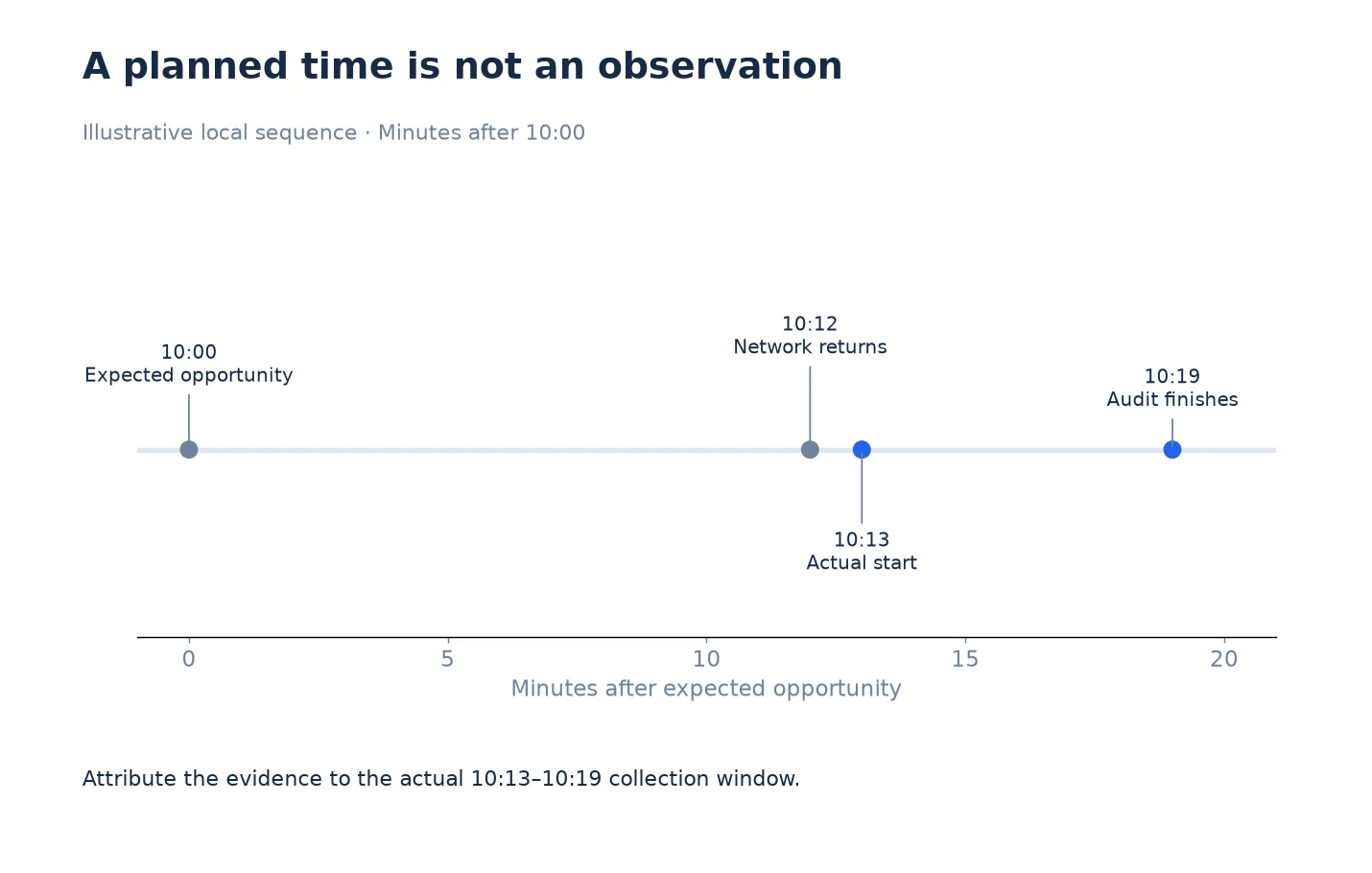
Consider an illustrative hourly check of a documentation section. The team expects the next opportunity around 10:00, but the Mac has no network connection. The run remains unobserved at that point. Connectivity returns at 10:12, work starts at 10:13 and the audit finishes at 10:19. These example times explain a sequence; they are not an LLMIC timing guarantee or a measured customer result.
The operator records the actual 10:13–10:19 collection window and checks the saved URLs. A website deployment at 10:08 belongs before this observation, even though it occurred after the intended 10:00 opportunity. The team cannot use the delayed audit as evidence of the website’s state at 10:00. To evaluate the deployment, it needs a genuine earlier saved result with compatible scope. The practical decision is to label the delayed run accurately and avoid reconstructing observations that were never collected.
Observe the First Full Cycle
After adding the schedule, watch the first transition through the relevant states. Confirm that the intended job starts, that a result is retained, and that the result covers the expected website. Read the completion message and inspect page-level evidence. A Complete label is not a declaration that every expected URL was reached, every issue was resolved or the site passed all checks. Reconcile the collected scope before using the result in a recurring report.
Record what should happen if a run cannot proceed. The owner should know where to look for the status and when to investigate. Do not rely exclusively on a notification banner, because delivery and attention are different from stored run evidence. For interpretation, continue with Review Crawl Scheduling Results in LLMIC. If the schedule does not produce the expected observation, use Troubleshoot Crawl Scheduling in LLMIC before creating another copy of the same job.
Questions About Setting Up Recurring Audits
Does adding a schedule prove that it is working?
No. It records configuration. Observe an actual run, inspect its saved result and confirm the intended website and scope before relying on it for a recurring review.
Should I choose the shortest available interval?
Choose an interval that fits the investigation, website capacity and review process. A shorter interval cannot compensate for unclear inputs, missing evidence or a result that nobody reviews.
Does a schedule preserve all my crawl settings?
Do not assume so. The reviewed schedule record contains the URL, type, interval and status information. Preserve the relevant crawl settings separately and verify the settings used for comparable runs.
Can I use an expected start as the observation time?
No. Use the actual collection window. A delayed run may observe changes that happened after its expected opportunity, so the two times must remain distinct in the evidence record.
Is Share-of-Model the same as a Full Audit?
No. They are different scheduled job types. A website crawl and a provider-based visibility observation have different inputs, completion conditions and interpretation rules. Choose the workflow that answers your actual question.
Will this work independently of my Mac?
Do not treat the reviewed local scheduling implementation as a hosted service. Keep the app and required Mac environment available, and verify the behavior of your installed release before depending on unattended work.
What should I check before enabling a client schedule?
Confirm authorization, the target URL, plan access, required settings, review ownership and one successful representative observation. Keep a record that distinguishes the configured schedule from the evidence it actually collects.
Sources, Statistics and Measurement Notes
Reviewed on 5 October 2026 against LLMIC’s Scheduling controls, ScheduledAuditStore, application trigger and audit-completion implementation. Control availability and behavior must be confirmed in the installed release. This page does not promise a hosted scheduler, exact-minute execution or complete coverage from a completion label.
The timeline uses illustrative times and contains no customer performance data. Keyword research is retained privately in the editorial brief; it is not a product claim. See crawl settings for related scope considerations.